



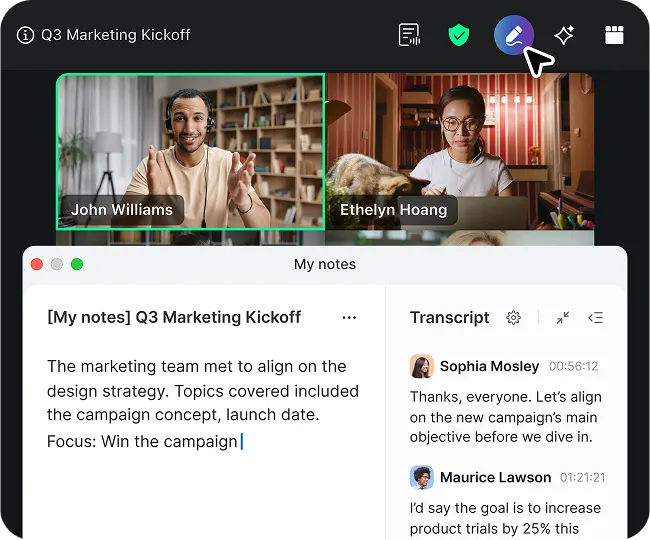
🚀 NEW My notes, your AI note taker
Automatically captures, summarizes, and extracts action items from any virtual or in-person meeting. Learn more

Campus events are at the heart of college and university life, helping higher education institutions engage students, families, faculty, staff, alumni, and partners.
However, campus events don’t need to be held on campus to bring your educational community together or build a vibrant university culture. In fact, reimagining traditional on-campus events as virtual and hybrid experiences enables you to reach more people and deliver a more accessible event.
In this guide, you’ll find everything you need to know about planning and hosting online and hybrid campus events using Zoom Events. No matter the size, format, or experience you’re looking to create, Zoom Events can help you bring your vision to life.
Before we dive into all the different kinds of events you may be looking to host, here’s a quick overview of Zoom Events. Think of Zoom Events as your all-in-one solution to host, manage, and report on your virtual events.
If you’re familiar with bringing people together on Zoom Meetings and Zoom Webinars, Zoom Events builds on those solutions by adding dedicated event hubs, registration and ticketing options, and attendee networking, which you manage entirely from the Zoom Events platform.
When should you use Zoom Events instead of Zoom Meetings or Zoom Webinar for your campus event? There may be times when a meeting or webinar will serve your purpose.
Ask yourself:
If you answered yes to any of the above questions, Zoom Events may be the right solution for you.
If you’re looking to make your event extra special (think centennial anniversary, commencement, or fundraising gala), Zoom has a dedicated Event Services team to help you plan, support, and produce a high-end virtual or hybrid event.
Zoom Event Services include best-practice consultation on run of show, production setup and support, and live event management and moderation. Our Event Services team can also offer pre-event and day-of support with a phone number for attendees and hosts to contact.
A typical college campus is bustling with events throughout the year. From orientation week to career fairs, alumni fundraisers to graduation ceremonies, here are a few ways you can reimagine your event as a virtual experience.

Planning and executing a campus event is a team effort! Delegate roles and responsibilities for every detail to streamline communications, simplify preparation, and make sure you’re ready for event day. You’ll want to have the following bases covered, even if some team members end up wearing more than one hat.
Your producers will be in charge of all things production-related. They will develop a run of show that outlines what time each session will start, transitions between speakers, shot lists, breaks between sessions, music, and other details.
On event day, the production team will be the ones orchestrating the event, making sure everything goes according to plan and runs on schedule.
The technical team oversees the technology for your event. Team members will be in charge of scheduling your virtual sessions and making sure the proper settings are enabled for features like Q&A, chat, livestreaming, and recording. They will also make sure hardware like cameras, microphones, and lighting are set up and operating properly and work with any off-site speakers to make sure they have the right equipment to successfully present from wherever they are.
Your presentation team will work closely with your event speakers (whether they’re part of your campus community or external presenters) on preparing for the event. They’ll help gather presentation materials like slide decks and review speaker bios before publishing them to Zoom Events. They will make sure speakers feel comfortable using Zoom to present and are well prepared with the right equipment and tips to look and sound great on camera.
Your marketing team will take the reins on promoting your event to the right audience to drive attendance and meet your event goals. They’ll create assets like an event webpage, flyers, social media posts, blog articles, and visuals to communicate why people will want to attend, give them the information they need to register, and drum up excitement for the big day.
Start planning early and give yourself plenty of time to create a solid foundation for your event. From building out all the details in Zoom Events to creating a unique and enjoyable experience for your guests, here’s what to do in the weeks and days leading up to your event.
If you haven’t already, you’ll want to create a Hub, which is a collection of upcoming, current, and past events.
You can have one Hub for all university events, but if you plan to host many different types of events for different audiences throughout the year, you can create several Hubs. For instance, you can have a Hub for alumni events, another for administration-led events like orientation or commencement, and Hubs for different departments to post their events.
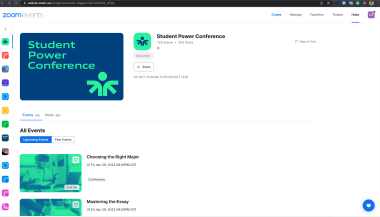
You can customize details like:
Visit our support page for step-by-step guidance on creating a Hub.
Once you have your Hub set up, you can create and fill in details about your upcoming event. If you have several Hubs, you can choose which Hub you want the event to be associated with.
You can add the following details about your event:
Visit our support page for detailed instructions on creating your event.
Gathering feedback during or at the end of the event is a great way to engage attendees and give them a chance to reflect on session content while it’s still fresh. In Zoom Events, you have the option to add a survey to be shown after each session ends, when selected sessions end, or when the overall event ends. You can also add different question formats to the survey.
Virtual and hybrid event organizers have a high bar to create an engaging, interactive experience for remote attendees — after all, they can easily multitask or click to exit your event whenever they want. Here are a few features that can help you design an experience that attendees will want to be a part of.
Registered participants can connect and network before and during your event in the Zoom Events lobby. For events like an educational summit, student orientation, or alumni reunion, you can set up and promote topics with all participants two weeks before the event to start a dialogue and pose questions to encourage attendees to interact.
The Q&A feature allows attendees in a webinar to submit questions for live or written responses during the session. Here are some tips for using Q&A during a webinar:
Get real-time feedback from your audience or gauge their level of understanding with the content you’re presenting using the Polling feature. You can set up poll questions and choices before your event and launch your pre-set polls during the session.
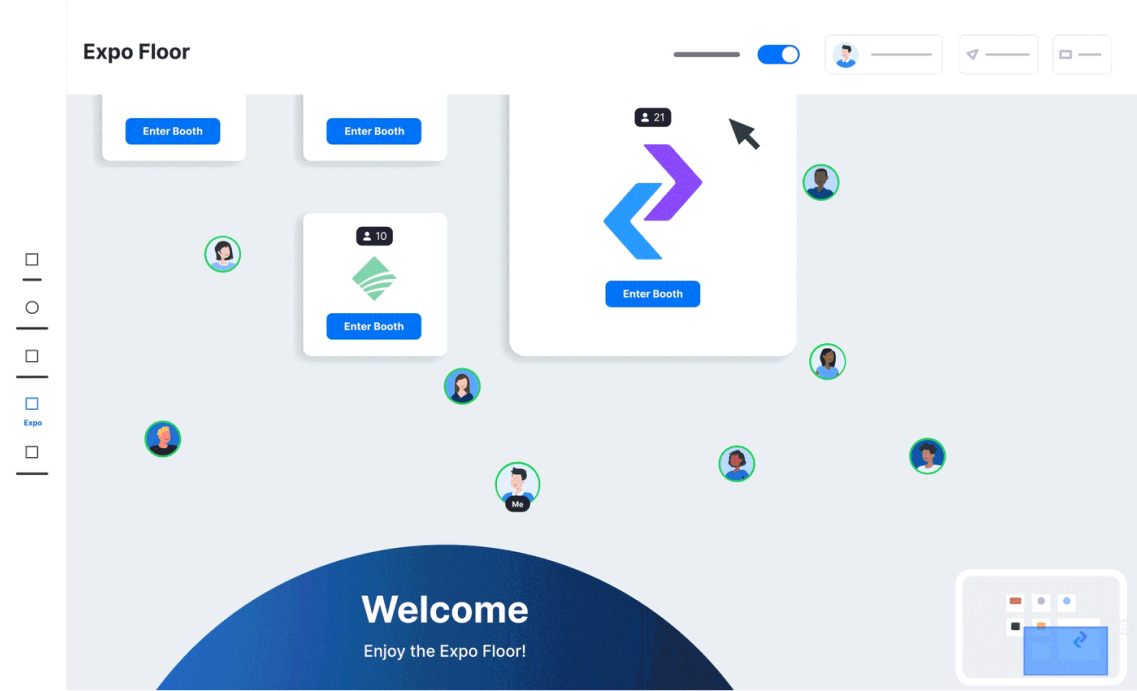
Enable Expo for your event to allow attendees to network with one another and drop into booths to learn more about particular topics or sponsors. Expo is a feature in Zoom Events that allows event organizers to set up a virtual exhibition that connects attendees with booth representatives (sponsors, exhibitors) to learn about their products and services. When creating your event you’ll see a tab labeled “Expo” — in that tab, you can toggle the Expo feature to enable it.
Visit our support page for all you need to know about setting up Expo for your next event.
Use Zoom Apps like Kahoot!, Mentimeter, or Miro to bring more fun, interactivity, and collaboration to your event.
Let attendees engage with each other in smaller groups during your event. You can assign attendees to Breakout Rooms in real time, pre-assign attendees, or allow them to self-select which room they want to join and move freely between rooms.

Learn how to create, assign, and manage Breakout Rooms.
A dry run gives your event team and presenters the opportunity to polish and prepare for the big day.
Your production, technical, and presentation teams should work together to schedule a dry run with everyone involved in the event — behind the scenes and in front of the camera. Go through your run of show, test equipment and settings, practice transitions and timing, and make sure presentations are working correctly.
It’s showtime! On event day, most of your prep work will be behind you. Your focus will be on executing all your planning efforts and giving your guests the best possible experience.
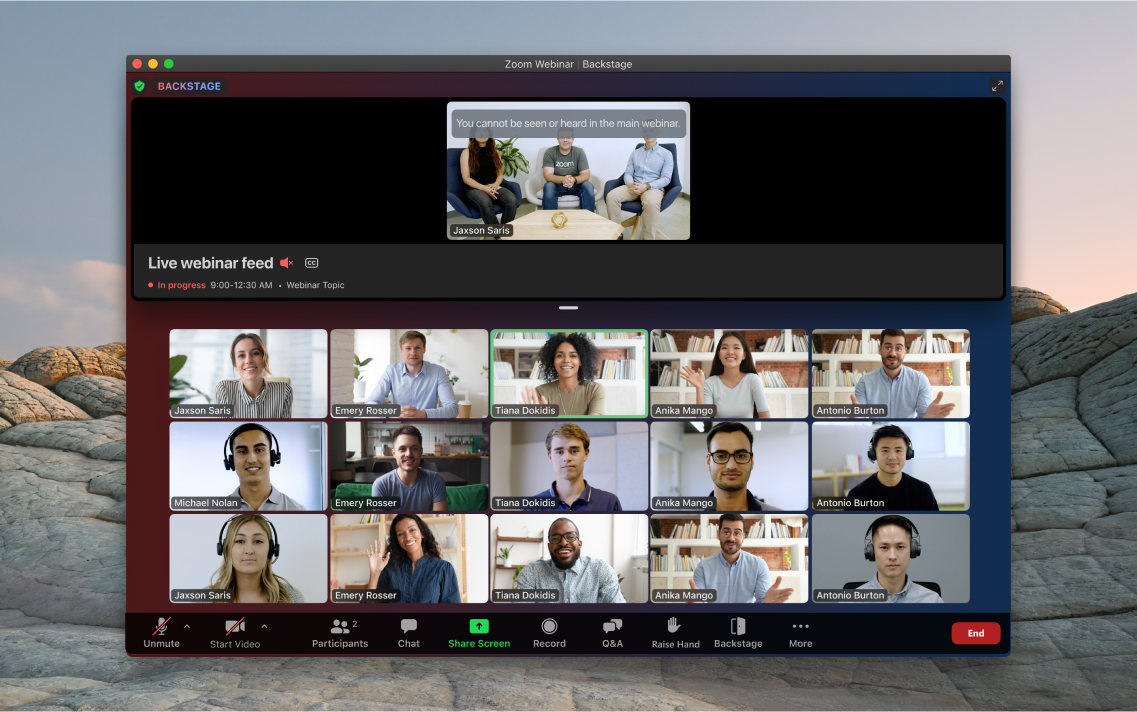
Our Backstage feature for Zoom Webinars provides hosts, co-hosts, and panelists with a private “backstage” or “green room” area to organize and prep before or between entering the active webinar session. From backstage, you can see and hear the active webinar session (also known as the “main stage”) to watch the event and listen for cues that will let you know when to join the main stage.
Give your speakers a call time 10 to 20 minutes earlier than the event starts so they can meet you backstage to test video and audio, screen sharing, and virtual backgrounds, all without disruption to the main stage. From there, hosts and panelists can seamlessly enter and exit the main stage as many times as they need to.
Try to launch your meeting or webinar a few minutes early to allow attendees time to join before the program starts. If you want to play welcome music, make sure it’s royalty-free.
While attendees are joining, this is a perfect time to make sure your meeting or webinar settings are correct. Check to see if you’re recording (indicated in the upper left corner of the window) and livestreaming to the proper platforms, and start the livestream if it’s not automatically enabled. Also, check that Q&A settings are correctly enabled and that panelists and co-hosts have the right permissions.
Kick off your event with a short housekeeping announcement letting attendees know whether the event will be recorded, how to submit questions, and what the webinar is about. Don’t forget to thank speakers and sponsors!
Make sure attendees know about these features that allow them to create their optimal event experience and connect with other guests.
The event lobby is a persistent space where attendees can network with each other as well as event sponsors before, during, and after the event. Guests have the ability to easily exchange contact info, chat and initiate meetings with other attendees in the event lobby. Attendees can also view live sessions from the lobby before joining.
If your event has multiple sessions, encourage attendees to have a more focused conversation in session chats, where they can talk about topics related to each session. You can also encourage presenters to engage in the session chat to answer questions and provide more in-depth discussion.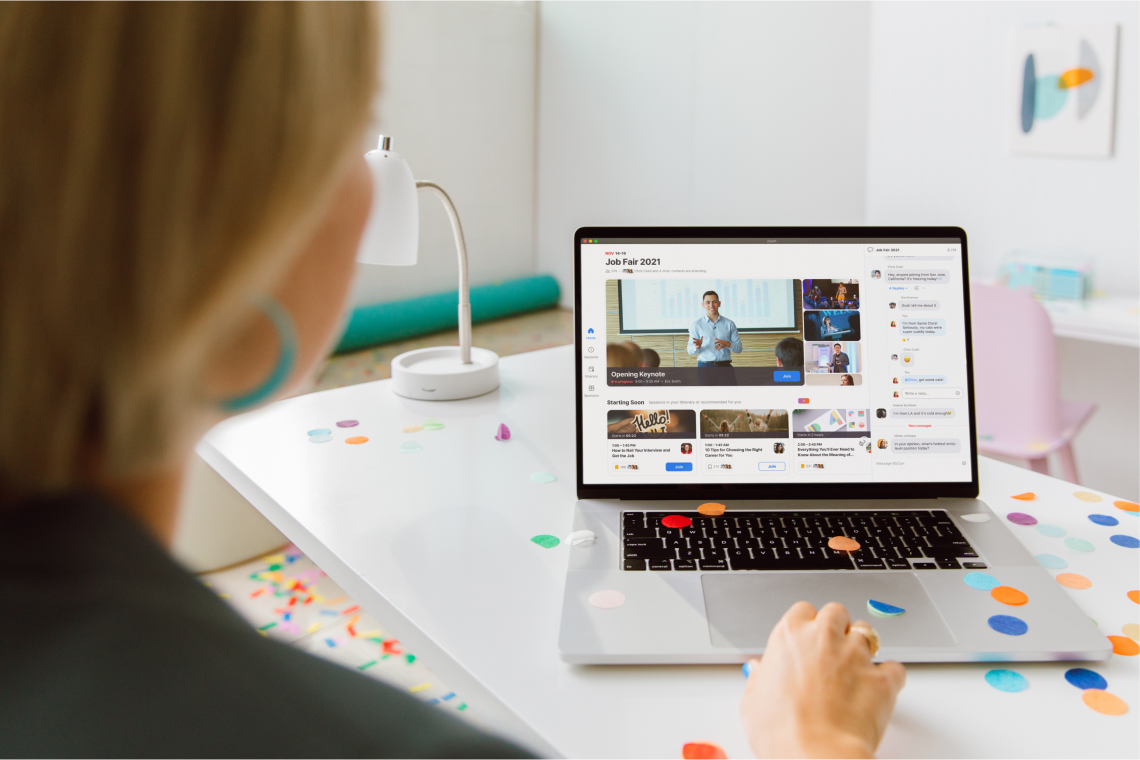
 Pro tip
Event owners and designated moderators have the ability to remove messages and users from the Zoom Events lobby group chats. Assign event staff the Moderator role in Zoom Events and have your team monitor the chat for disruptive or inappropriate messages.
Each guest can build their own custom event agenda by adding sessions to their itinerary. An itinerary is a central place where attendees can view all their sessions of interest at a glance on a calendar layout.
The session directory makes it easy for attendees to search for sessions and filter their view based on topic track, audience type, and more.
Keep Zoom Events, Zoom Webinars or Zoom Meetings support pages open to quickly troubleshoot attendee issues on the fly. If panelists come across any issues, chat privately with them on the Zoom client or the in-session private chat feature.
Here are some quick resources for common host and attendee issues:
Congrats on hosting a successful event! Once your event is over, you can continue to connect with attendees, gather feedback, and dive into post-event reports to analyze attendance and engagement.
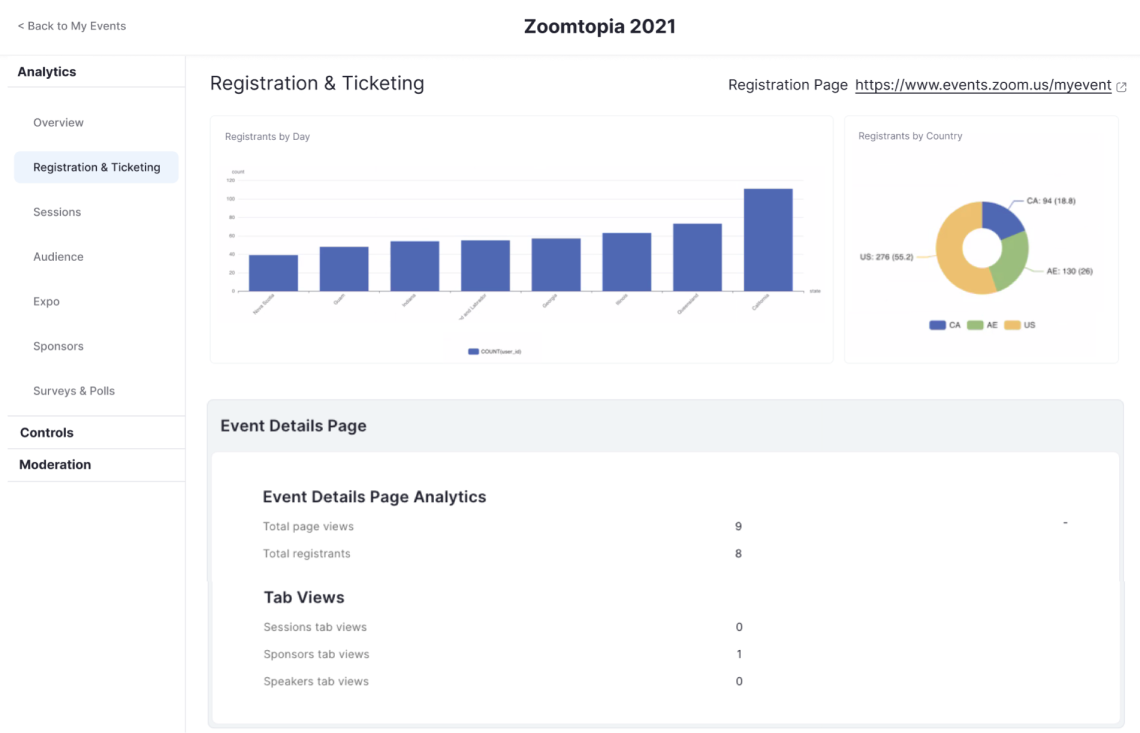
Visit the Analytics and Control Panel section of Zoom Events to view and generate reports for post-event survey results. Compile session and overall event feedback as part of your debriefing discussions.
Make your event recording available to everyone who registered, put recordings on your website for general access, or gate the content to collect user data from viewers accessing the recordings. There are a few different ways to manage event recordings:
Events are great for connecting with your campus community, but don’t forget to continue engaging once the day-of festivities are over! Email attendees to invite them to view session recordings when available, and follow up to share other relevant events or news they may be interested in. Tailor your content to the audience — for instance, after hosting an orientation for new students, follow up with tips for first-year success and links to different clubs and activities happening around campus.
If using Zoom Events, review your Analytics and Control Panel for a look at page analytics, lobby and session analytics, event session reporting, and event sponsor analytics. You can also generate meeting reports, which provide data on registration and polling for meetings, or webinar reports, which provide data on registration, attendees, Q&A, polling, and event performance.
Use attendee data and survey results, as well as feedback from speakers and panelists, and track engagement with your content and other event features. By assessing what worked and what didn’t, you’ll be able to make your next campus event more impactful than the last.
Zoom Events can help you create memorable experiences and connect with more of your campus community. Get started with one of our flexible plans or check out our on-demand webinar to see what Zoom Events can do for your college or university.
