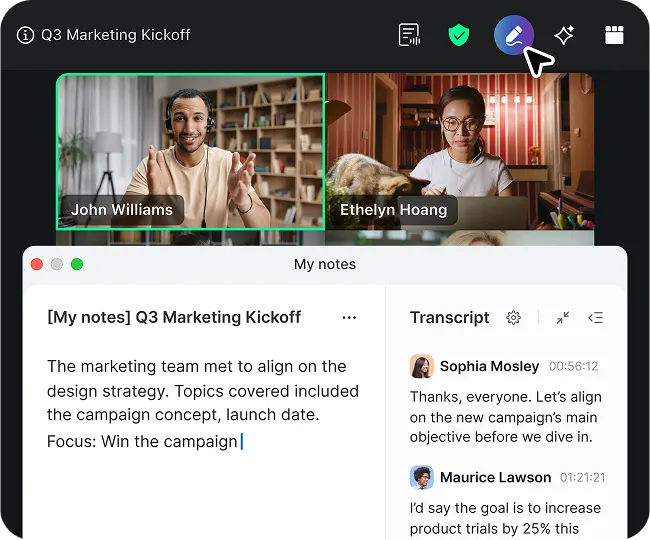
Although Zoom is available on a wide range of devices, the process for making a video call on Zoom is the same, regardless of which device you are using. Here's how to get started:
Video calls from a browser or Zoom desktop client
- First, you'll need a Zoom account. Sign up at zoom.us/signup.
- Start a meeting by clicking "Host a Meeting" on the Zoom website, going to zoom.us/meeting, or clicking "New Meeting" on your Zoom desktop client. You can also schedule a meeting for later.
- Invite others to join. Click the "Participants" icon at the bottom, and click "Invite." From the Invite window, you can select from your contacts, send an invitation via email, or copy your invite link and share it in email or chat; copying the invitation has additional meeting details, or you can just copy the link. You can also share your meeting ID and passcode, which attendees can use to type into the Zoom client and join a meeting that way.
For more information on how to use in-meeting features such as Mute, Video On/Off, and more, visit our support page.
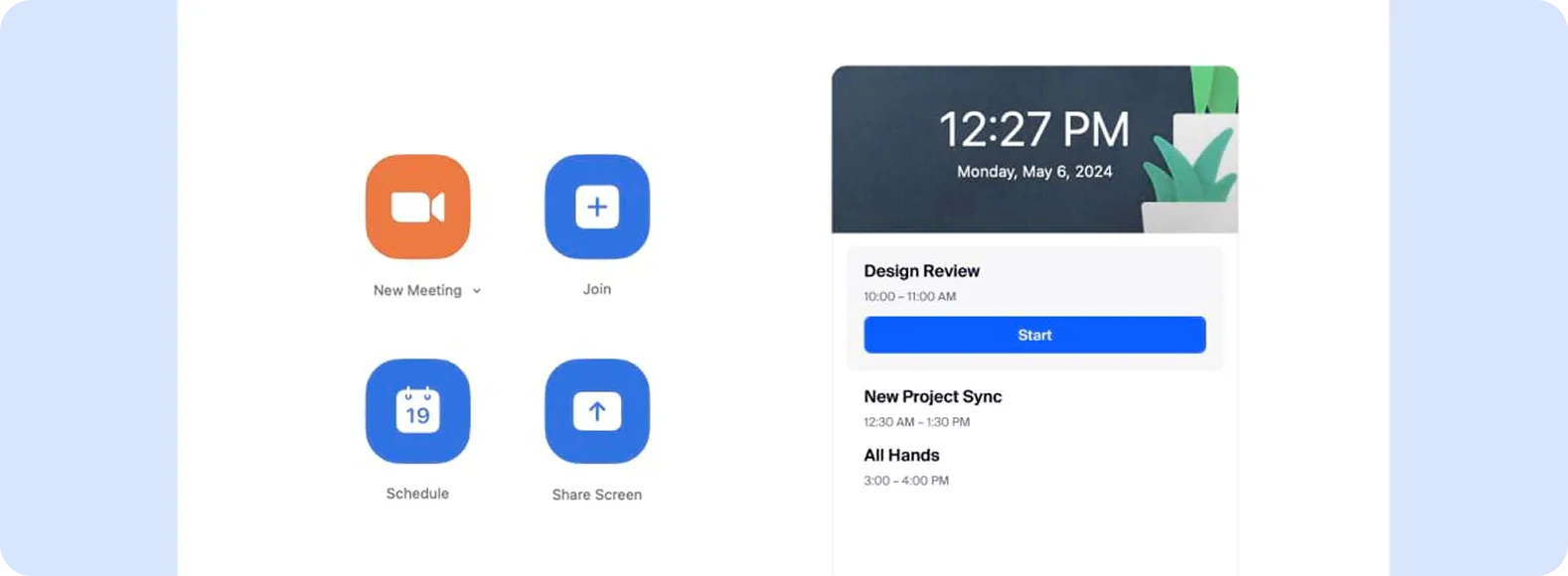
Video calls from your phone with the Zoom app
You can also make video calls from your mobile device using the Zoom mobile application, giving you the ability to make that face-to-face connection, even when you're on the go. Here's how to make a video call from your mobile device:
- Open the Zoom mobile app and sign into your account.
- To instantly start a new meeting, click the "New Meeting" icon at the top of your screen, then click "Start a Meeting." Once started, click "Participants," then "Invite" to invite attendees to your meeting. These instant meetings will use your Personal Meeting ID, which gives you access to a virtual meeting room permanently reserved for you.

Scheduled video calls on Zoom
You can join a scheduled meeting or schedule a meeting using the Zoom client, web browser, or your Zoom mobile app. Here's how to schedule and join a Zoom Meeting:
- To join a previously scheduled meeting using the meeting ID, click the "Join" icon at the top of your screen, then enter your meeting ID and click "Join" to join your meeting.
- To schedule a meeting, click the "Schedule" icon, and enter your desired meeting options.
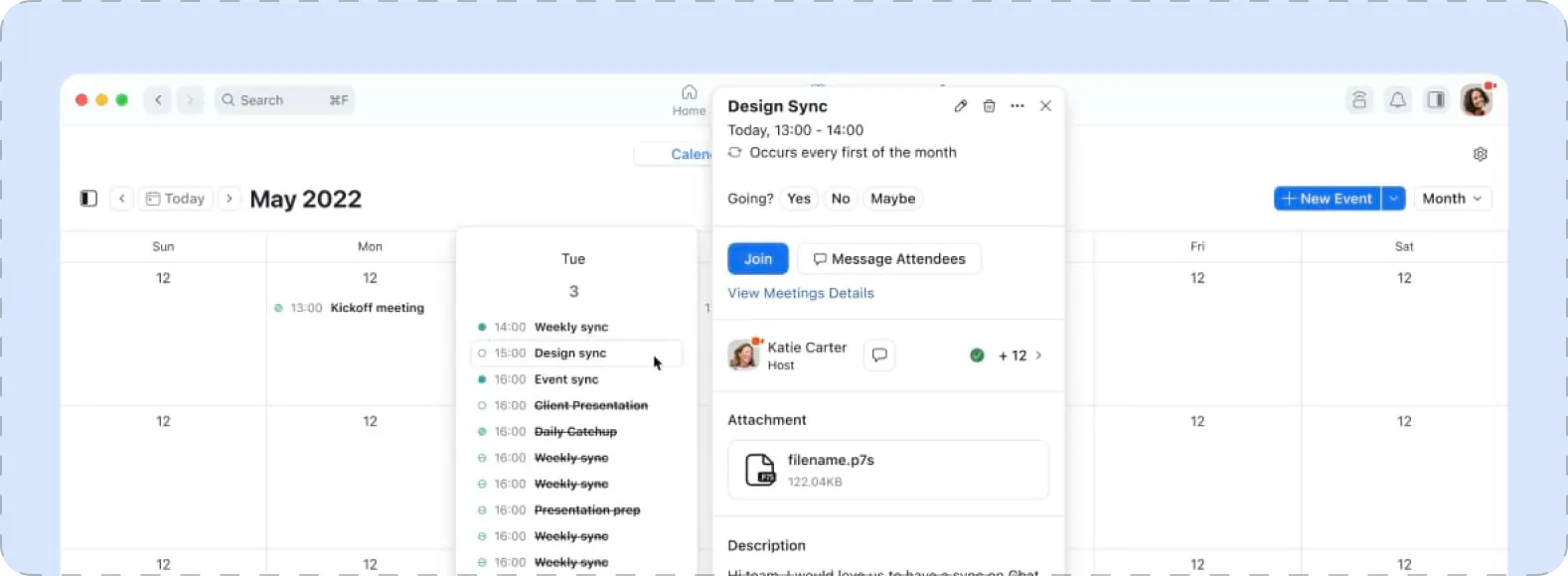
- To view your meetings for the day and join a previously scheduled meeting, click the "Meetings" tab at the bottom of your screen, which will populate all your meetings scheduled for that day. Select which meeting you'd like to join, then click "Join" to enter the meeting using your mobile device.
Zoom also offers a number of license options to meet your communications needs, including our Basic plan, which is completely free for all users. The Zoom Basic plan offers free video calling where you can host up to 100 participants at one time. While group meetings are limited to 40 minutes under our Basic plan, you can enjoy unlimited one-on-one meetings. Our free Zoom Basic plan also includes the following for your video calls:
Want to take your meetings to the next level with unlimited meeting time and increased functionality? Upgrade to a Zoom Pro plan and get more time to meet, cloud recording, polling, reporting, and other capabilities.