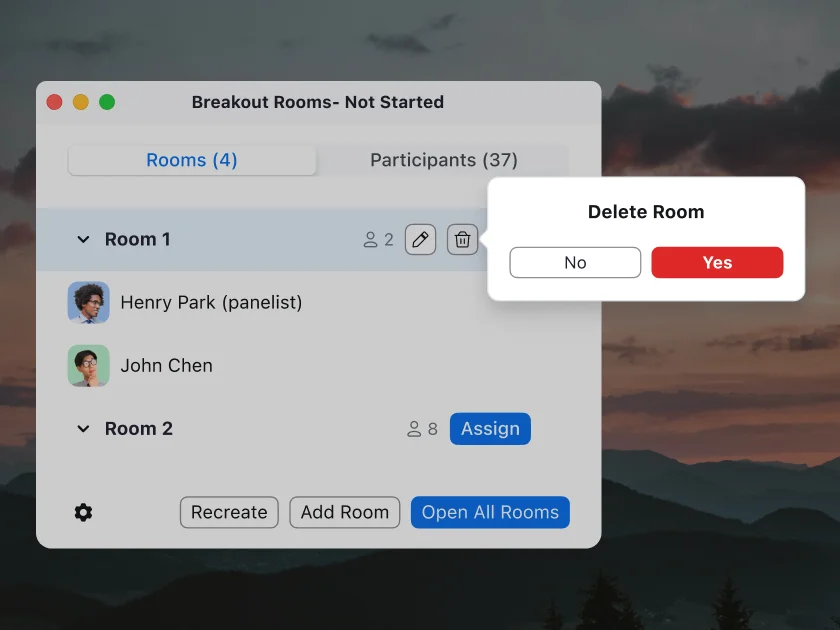
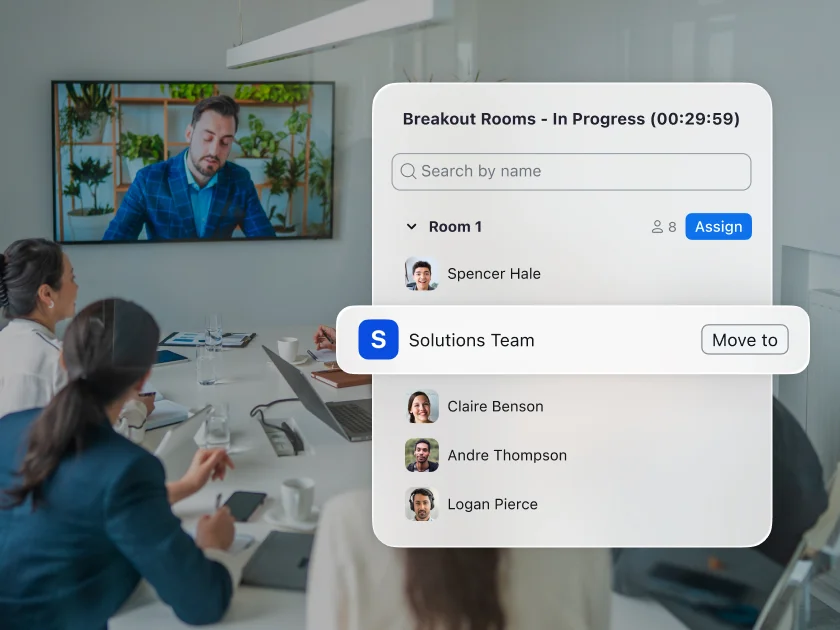
To enable the breakout room feature for your own use, start by signing in to the Zoom web portal and heading to “Settings.” Click the “Meeting” tab — under “In Meeting (Advanced),” toggle on the breakout room option. A verification dialog may appear, so just click “Enable” to verify the change if it does. If, for some reason, the breakout room option is grayed out, it’s likely locked by your account admin — so make sure to connect with them to get set up.
To give yourself more flexibility during the breakout rooms experience, we suggest selecting the following boxes during set-up:
- Allow meeting hosts to pre-assign participants to breakout rooms.
- Allow host to broadcast message to participants, which lets you broadcast a text-based message to all participants in breakout rooms.
- Allow host to broadcast voice to breakout rooms, which lets you broadcast your microphone audio to all participants in breakout rooms.
- Allow host to create, rename, and delete breakout rooms when rooms are open.
- Allow host to view activity statuses of participants in breakout rooms (e.g. share screen, reactions). This allows hosts and co-hosts to quickly view participants' audio and video status, if they are sharing their screen, and any active reactions or nonverbal feedback.
Then click Save, and you should be good to go.
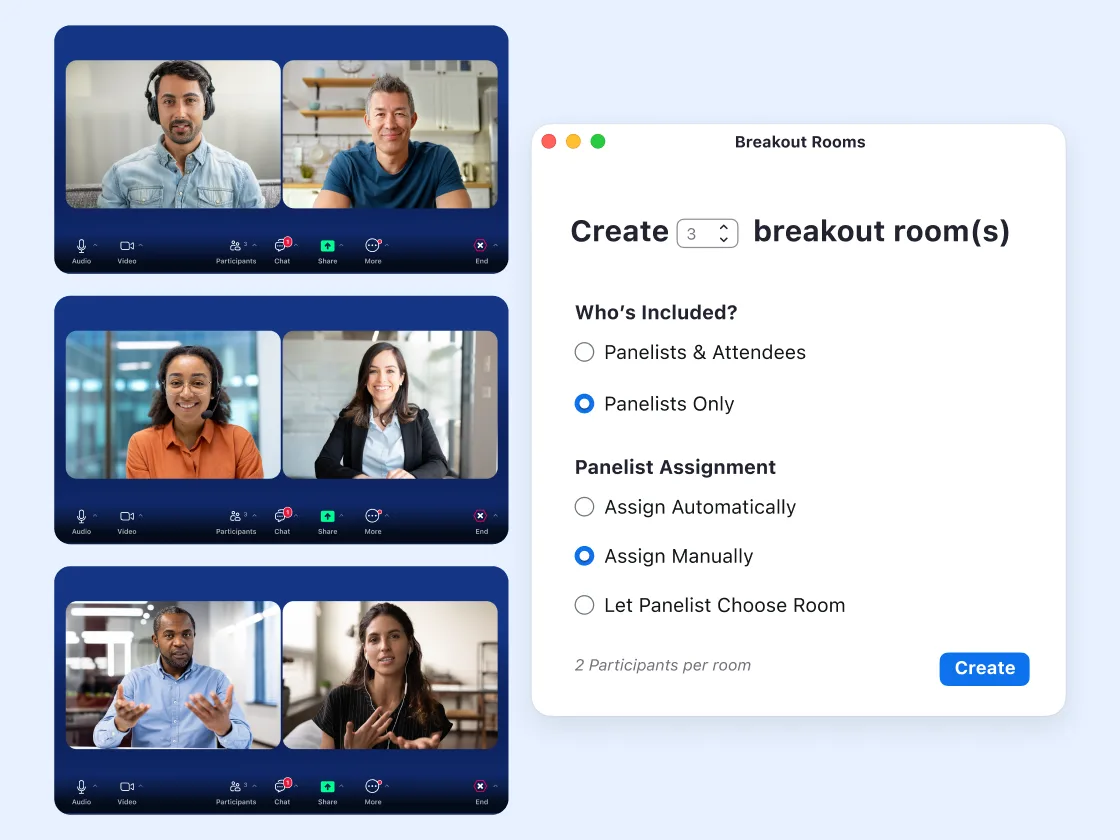
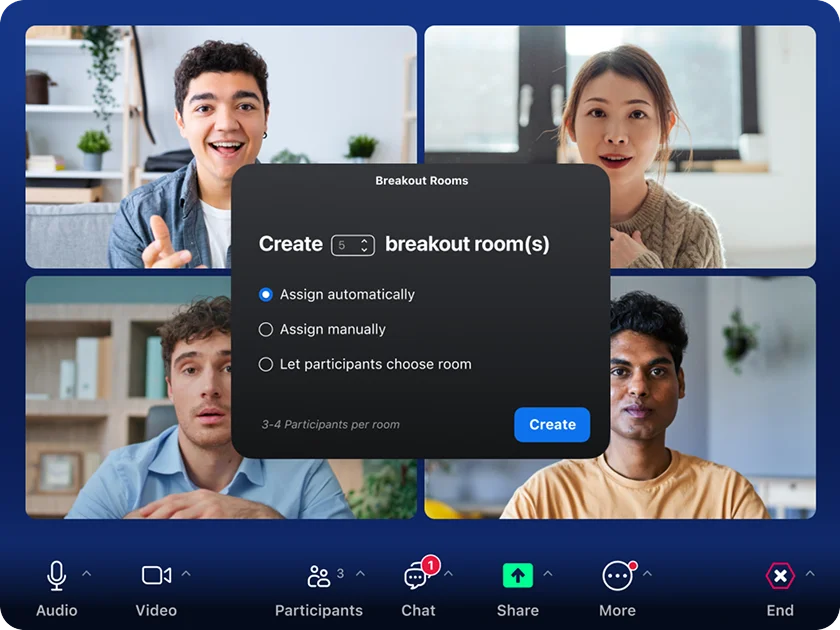
To create a breakout room, just start an instant or scheduled meeting and click “Breakout Rooms.” Select the number of rooms you would like to create and how you would like to assign your participants to those rooms, either choosing which participants you’d like in each room or assigning participants automatically. You can also let participants choose the room they’d like to be in. Click Create, and then let the sessions run as you see fit.